Server Side
Register and maintain server instances from dedicated servers
Your dedicated server is responsible for announcing itself to the Server Browser, managing player capacity, and staying alive. All server-side calls use the Server Token (not the client token).
Free tier shuts down after 3 hours of runtime. If your server browser suddenly stops working during testing, restart the free cluster from the Edgegap dashboard. No credit card required.
Prerequisites — Server Browser Configuration
Before any of this works, you need to create a Server Browser configuration in the Edgegap dashboard. This JSON defines which metadata fields are indexed for filtering and sorting.
{
  "version": "0.0.5",
  "server_instances": {
    "expiration_period": "30s",
    "indices": {
      "map": "string",
      "mode": "string",
      "server_version": "string",
      "beacon_ip": "string",
      "beacon_port_udp": "int"
    }
  },
  "server_instance_slots": {
    "indices": {
      "team_name": "string",
      "average_skill": "float"
    }
  },
  "seat_reservations": {
    "expiration_period": "30s"
  }
}
Only indexed metadata can be used for filtering and sorting by clients. Non-indexed metadata can still be stored and read, but won't be searchable. Avoid indexing fields you don't need to filter/sort on — it affects performance.
Step 1 — Register Server Instance
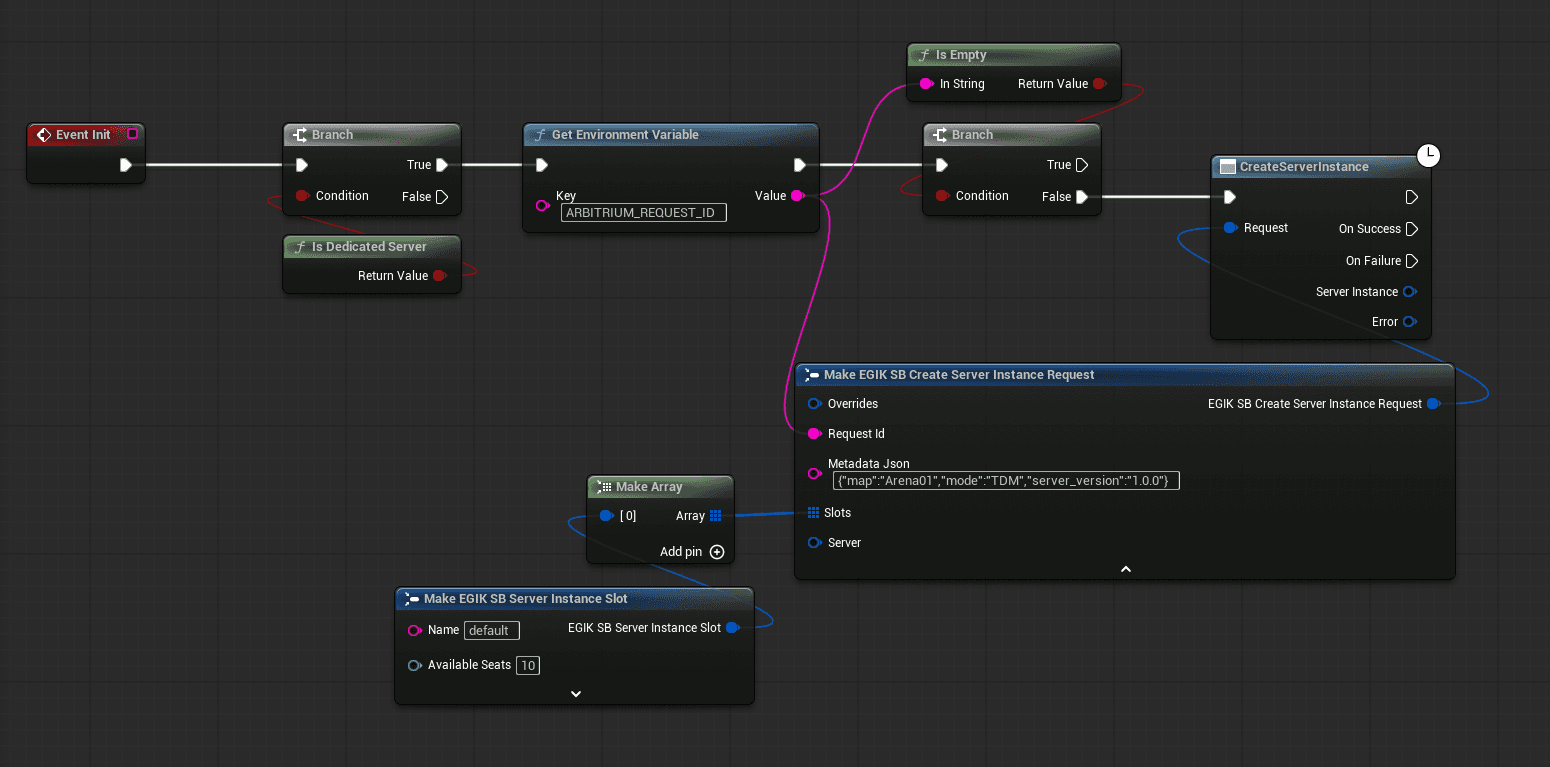
On startup, read the deployment's environment variables and register with the Server Browser. This makes your server discoverable by clients.
- Read
ARBITRIUM_REQUEST_IDfrom environment variables to get your deployment's request ID. - Build metadata JSON with your server's game parameters (map, mode, version, beacon info, etc.).
- Call
SB_CreateServerInstancewith the request ID, metadata, and initial slot configuration.
Step 2 — Keep Alive
Server instances must send a periodic heartbeat. Missing the heartbeat for your configured expiration period will automatically remove your instance and all pending reservations.
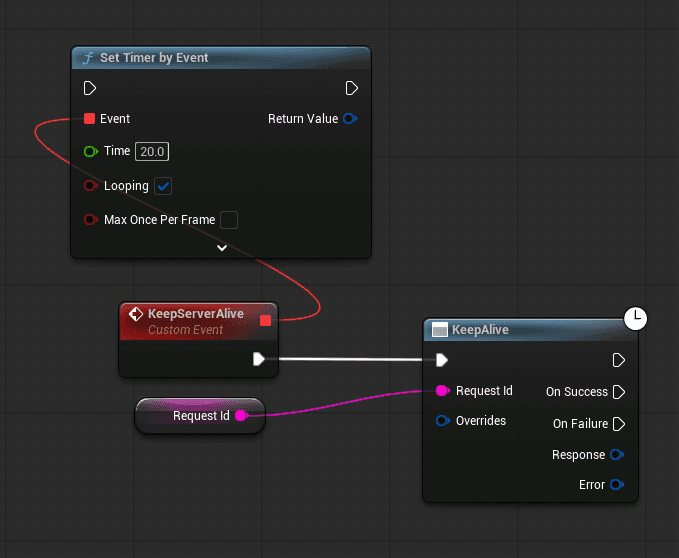
- Set up a looping timer that fires well before your configured expiration period (for default configurations, try 20s).
- On each tick, call
SB_KeepAlivewith theRequestId.
timeout duration can be edited under server_instances.expiration_period. If your configuration uses a different value, keep your heartbeat interval comfortably below it.
Step 3 — Confirm Reservations
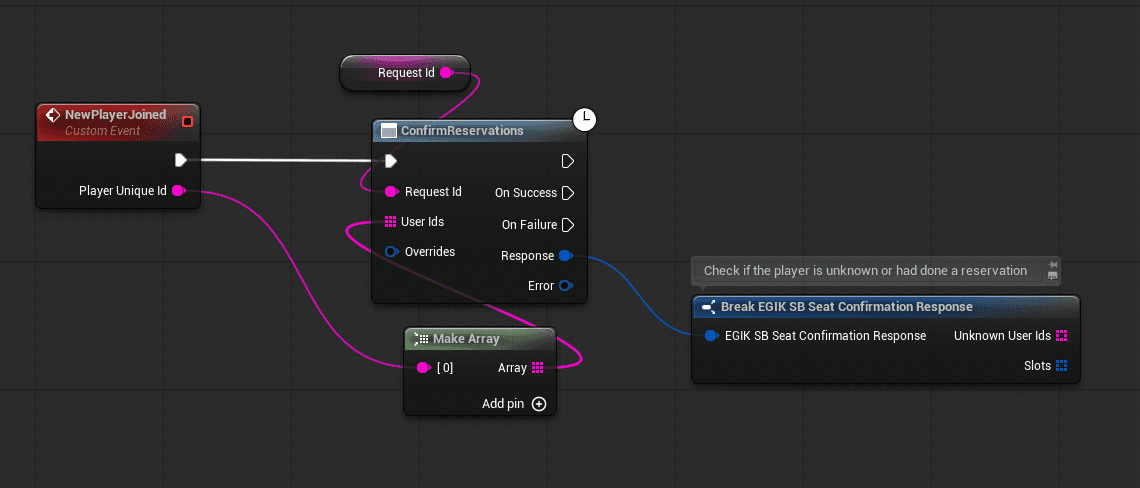
When a player connects via netcode, confirm their reservation. This is typically done in your GameMode's PostLogin or equivalent player-joined event.
Federated Identity: Players must provide a unique third-party player ID when calling ReserveSeats on the client. The same ID must be passed to the server during connection (e.g. via login payload). ConfirmReservations uses this ID to match the connecting player to their reservation.
- Call
SB_ConfirmReservationswith theRequestIdand an array ofUserIdsfor the players who just connected. - Break the response to check for accepted, expired, or unknown player IDs.
- Decide how to handle each group — allow, kick, or ban.
- Call
SB_UpdateSlotto adjustAvailableSeatsafter confirming.
Step 4 — Handle Player Disconnect
When players leave, you must update slot capacity so new players can reserve those seats.
- Call
SB_UpdateSlotwith theRequestId,SlotName, and the newAvailableSeatscount. - If your game allows reconnection, consider waiting a short period before releasing the seat.
- If the server is empty, consider waiting a few minutes before stopping to reduce restarts during short idle periods.
Step 5 — Advanced Slot Management (Optional)
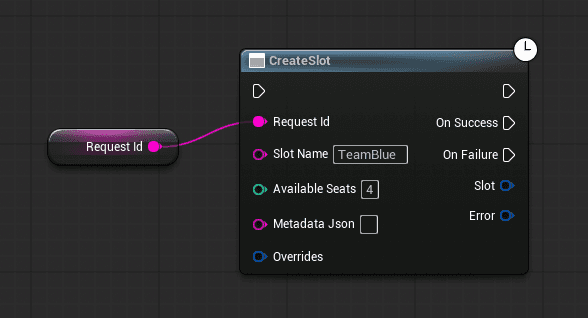
Use separate slot creation and deletion only if your game needs to add, remove, or reshape slots after the server instance is already registered.
- Call
SB_CreateSlotwith theRequestId, aSlotName(e.g. "TeamBlue"), andAvailableSeatsto add a new slot dynamically. - Call
SB_UpdateSlotto change capacity on an existing slot. - Call
SB_DeleteSlotto remove a slot that should no longer exist.
For most projects, the slot list will be defined up front in SB_CreateServerInstance.
Shutdown & Cleanup
When your server is shutting down or the match ends:
- Call
SB_DeleteServerInstancewith theRequestIdto remove from the Server Browser. - Use
SB_DeleteSlotif you need to remove a specific slot mid-match.
C++ Example (Create Instance)
#include "ServerBrowser/EGIK_SB_CreateServerInstance.h"

FEGIK_SB_CreateServerInstanceRequest Req;
Req.RequestId = DeploymentRequestId;
Req.MetadataJson = TEXT("{\"map\":\"Arena01\",\"mode\":\"TDM\"}");
// Req.Overrides empty => read URL/token from plugin settings.

auto* Node = UEGIK_SB_CreateServerInstance::CreateServerInstance(Req);
Node->OnSuccess.AddDynamic(this, &UMySubsystem::OnServerInstanceCreated);
Node->Activate();
Important
Use server token (not client token) for all server-side operations. The server token can be injected as an app version variable in your Edgegap dashboard.