Client Side
Browse server instances, reserve seats, then connect
Step 1 — List & Display Servers
Use ListServerInstances to fetch available servers. Filter and sort so players see the most relevant results first.
- Call
SB_ListServerInstanceswith aFilter,OrderBy, andLimit. - Break the response to get
Items(the server list) andPagination(cursor for next page). - Loop through
Itemsand display each server's metadata in your UI.
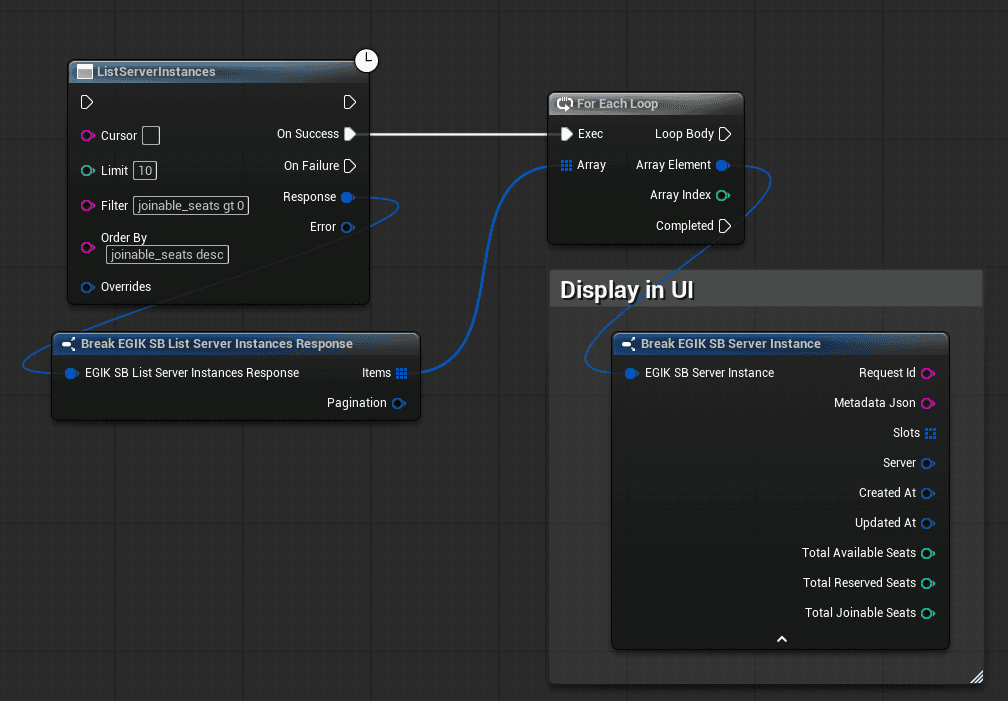
Filter & Sort Syntax
Both Filter and OrderBy are plain strings. Filters can be chained with and.
| Metadata Type | Operators | Example |
|---|---|---|
joinable_seats | eq ne lt le gt ge | joinable_seats gt 0 |
string | eq ne lt le gt ge contains | metadata.map eq 'Arena01' |
int / float | eq ne lt le gt ge | metadata.xp_multiplier gt 1.0 |
bool | eq ne | metadata.allows_new_connections eq true |
Combined filter example:
joinable_seats gt 0 and metadata.mode eq 'TDM' and metadata.server_version ge '1.0.0'OrderBy example: joinable_seats desc or metadata.map asc
Only metadata fields defined as indices in your Server Browser configuration can be filtered or sorted. See Server Side prerequisites.
Pagination
Server Browser uses cursor-based pagination, not offset-based. To fetch the next page, pass the Cursor value from the previous response's Pagination into the next ListServerInstances call. Leave Cursor empty for the first page.
Step 2 — Save Browsed Session
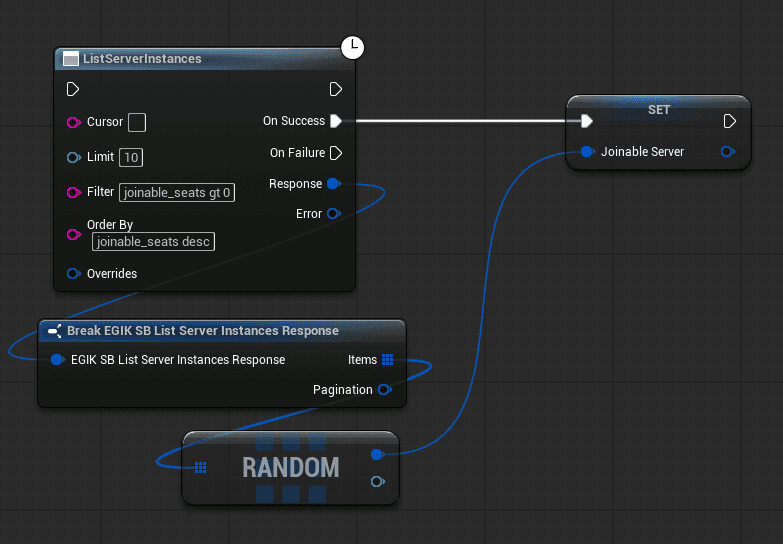
When a player picks a server from the list, store the selected instance so you can reserve a seat and connect.
- From
ListServerInstancesresponse, pick a server (e.g. random or player's choice). - Save the selected
FEGIK_SB_ServerInstanceto a variable for the next step.
Step 3 — Reserve Seat & Connect
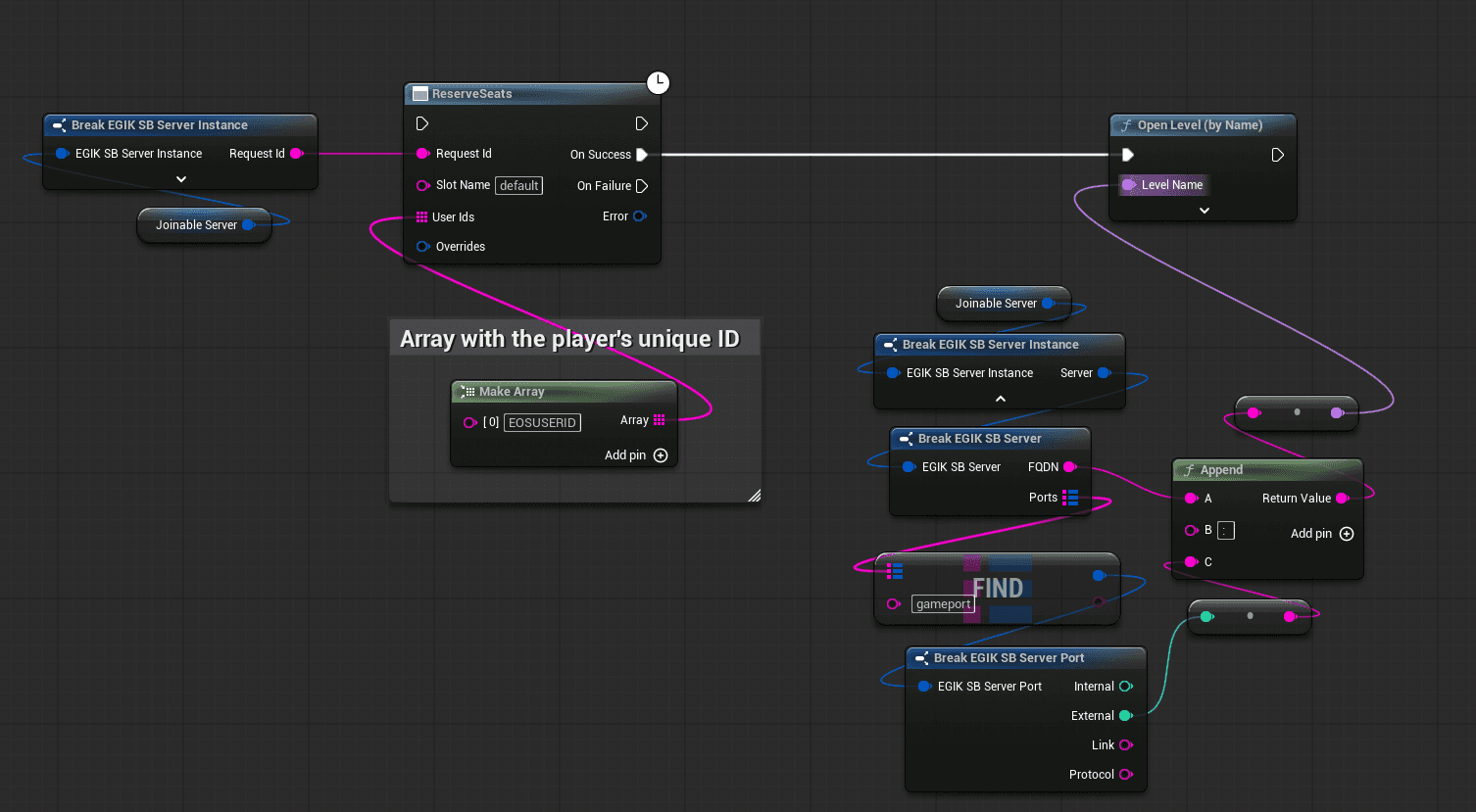
Before connecting, reserve a seat to guarantee capacity. Reservations expire when the configured reservation window elapses, so connect immediately after.
Player Identity: You must pass a unique third-party player ID in UserIds. The same ID must be sent to the dedicated server during connection so it can call ConfirmReservations and match the player to their reservation.
- Call
SB_ReserveSeatswith the server'sRequestId,SlotName, and an array containing the player's unique ID. - On success, read the desired port's
Linkfrom the saved instance'sServerresponse data. - Connect directly using the
Linkvalue. - On failure (409 = slot full), show an error and let the player pick another server.
The common 30s reservation timeout is just the example shown in the server-side configuration under seat_reservations.expiration_period. If your configuration uses a different value, that value controls how long the client has to connect before the reservation expires.
C++ Example (List + Reserve)
#include "ServerBrowser/EGIK_SB_ListServerInstances.h"
#include "ServerBrowser/EGIK_SB_ReserveSeats.h"

auto* ListNode = UEGIK_SB_ListServerInstances::ListServerInstances(
    TEXT(""),
    20,
    TEXT("joinable_seats gt 0"),
    TEXT("joinable_seats desc")
);
ListNode->OnSuccess.AddDynamic(this, &UMySubsystem::OnServerListReady);
ListNode->Activate();

// reserve later
TArray<FString> UserIds = { PlayerId };
auto* ReserveNode = UEGIK_SB_ReserveSeats::ReserveSeats(RequestId, SlotName, UserIds);
ReserveNode->OnSuccess.AddDynamic(this, &UMySubsystem::OnSeatReserved);
ReserveNode->Activate();
Important
- Reservations are short-lived. Your dedicated server must call
SB_ConfirmReservationsquickly after the player connects — see Server Side. - The free tier cluster shuts down after 3 hours. If listing returns no results during testing, restart the cluster from the Edgegap dashboard.